


📌 Struggling with event engagement? This event app fixed it! 

Download now

📌 Struggling with event engagement? This event app fixed it! 

Download now

10 Things to Look for in Event Attendance Tracking Software

Tue, 11 Nov 2025

image-alternative-text
Sara Roy

You're evaluating event attendance tracking software because you need better data on who actually shows up to your events, which sessions they attend, and how to prove ROI to your CMO. Maybe you're tired of paper sign-in sheets, or your current system doesn't integrate with your CRM, or you can't track individual session attendance.

Whatever brought you here, you need a practical way to evaluate vendors without getting lost in feature lists that all sound identical.

This checklist gives you 10 critical checkpoints you can verify during any demo. Use it to separate software that actually solves your problems from software that just has good marketing.
✓ #1: Works Perfectly Offline (Actually Test This)

Why it matters: Venue WiFi will fail. Your tracking software can't.

How to verify:

  • Ask the vendor to turn off WiFi during the demo
  • Watch what happens when they try to check someone in
  • Confirm data syncs automatically when connection returns

Red flags:

  • "We recommend having backup WiFi" (that's not offline capability)
  • "You can export to CSV if internet fails" (manual workarounds aren't solutions)
  • Vendor refuses to demo offline mode

What good looks like: Software continues functioning identically with zero connectivity. Staff don't even notice WiFi is down.

Checklist question: ☐ Can I check in 200+ attendees with zero internet and data syncs automatically when connection returns?

✓ #2: Real-Time CRM Sync (Not "Near Real-Time")

Why it matters: Your sales team needs to know the moment a VIP prospect arrives—not 30 minutes later.

How to verify:

  • Ask: "If someone checks in right now, how long until it appears in Salesforce?"
  • Good answer: "5-10 seconds"
  • Bad answer: "We sync every 30 minutes" or "Overnight batch process"

What actually syncs: Look beyond just "attended: yes/no." You need:

  • Check-in timestamp
  • Sessions attended
  • Materials downloaded
  • Engagement score
  • No-show flag for registrants who didn't attend

Checklist question: ☐ Does check-in data appear in my CRM within 10 seconds, and does it include session-level detail?

For a complete breakdown of what CRM integration should actually do, see our full guide to event attendance tracking software.

✓ #3: Session-Level Tracking (Not Just Entry/Exit)

Why it matters: Knowing "Sarah attended the conference" is useless. Knowing "Sarah attended the product roadmap session for 47 minutes and downloaded the deck" tells a story.

How to verify: Ask vendor: "Show me how you track which specific breakout sessions each attendee joins."

What you're looking for:

  • Track attendance at individual sessions (not just main event)
  • Capture how long they stayed
  • Note if they left early
  • Record what content they engaged with

Red flags:

  • "We track entry and exit from the venue" (that's headcount, not behavior)
  • "You can manually record sessions in a notes field" (not scalable)

Checklist question: ☐ Can I see exactly which sessions each attendee joined and how long they stayed?

✓ #4: Multi-Device Support Without Extra Fees

Why it matters: You need 4 check-in stations. Will you pay 4x the price?

How to verify:

  • Ask: "If I need 6 check-in tablets, do I need 6 licenses?"
  • Ask: "Do all devices see real-time updates from each other?"
  • Ask: "What happens if someone checks in on Device A while Device B is offline?"

What good looks like:

  • Unlimited devices on one license (or priced reasonably)
  • All devices sync automatically
  • Intelligent conflict resolution if same person checks in twice
  • Can add emergency devices instantly if lines form

Checklist question: ☐ Can I use multiple check-in devices simultaneously without per-device fees or sync conflicts?

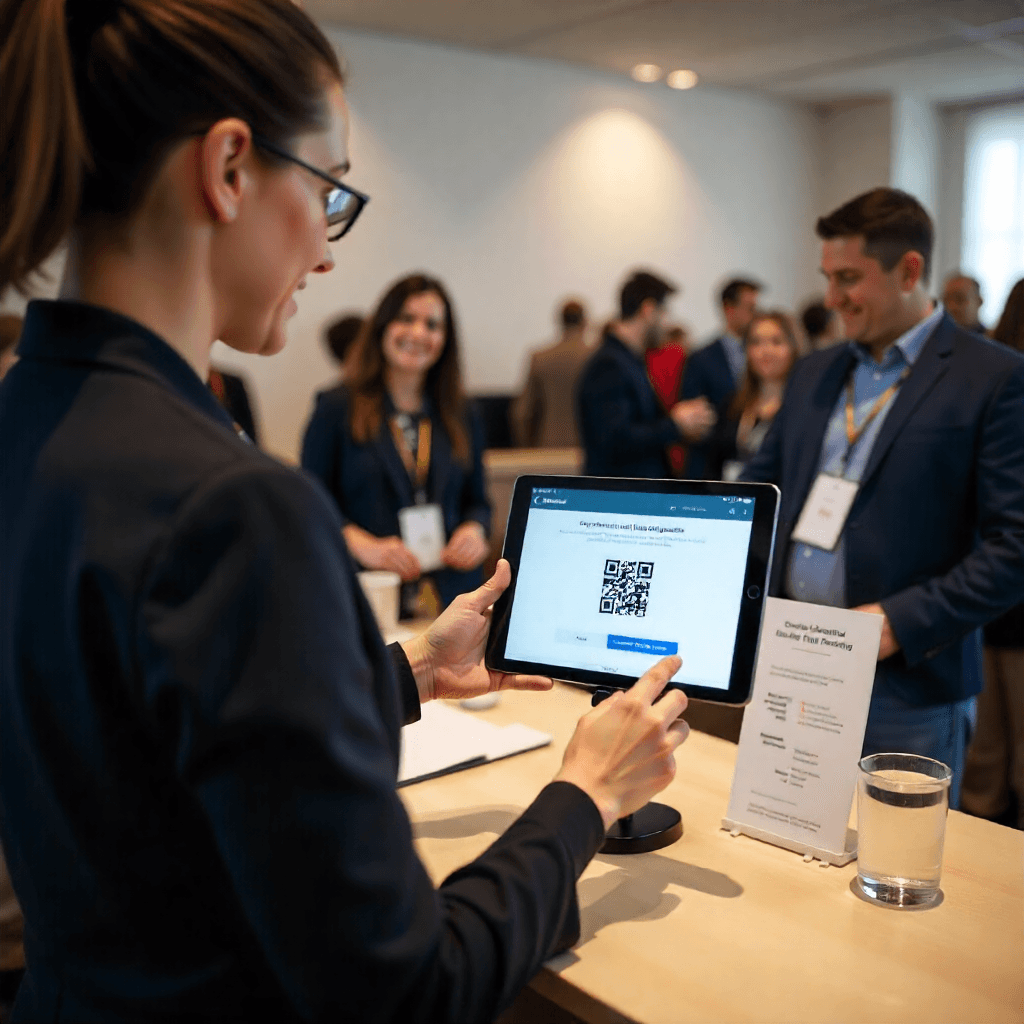
✓ #5: Actual Mobile Optimization (Not Desktop Site Shrunk Down)

Why it matters: Your staff will use tablets and phones. Clunky interfaces create bottlenecks.

How to verify during demo:

  • Ask vendor to show you the mobile interface (not desktop)
  • Watch how many taps it takes to check someone in
  • Look for large, finger-friendly buttons
  • Test search functionality with partial names

Red flags:

  • Tiny text and buttons (designed for mouse, not fingers)
  • Requires pinch-to-zoom
  • Search requires exact spelling
  • Takes 8+ taps to complete check-in

What good looks like: Check-in takes 2-3 taps maximum. Search shows results as you type. Interface is clean and obvious.

Checklist question: ☐ Can event staff check someone in with 3 taps or less on a mobile device?

freepik__event-staff-member-using-tablet-with-large-touchfr__39742.png

✓ #6: Customizable Check-In Fields (But Not Too Many)

Why it matters: You need flexibility without over-complicating check-in.

How to verify: Ask: "Can I add custom questions during check-in, and can I control which events require them?"

What you might need:

  • Dietary restrictions for meal functions
  • T-shirt size for swag
  • Session preferences for breakouts
  • Emergency contact for multi-day events

Critical balance: Every extra field adds 10-15 seconds to check-in. Keep it minimal or collect during registration instead.

Checklist question: ☐ Can I add 1-3 custom fields for specific events without cluttering the standard check-in flow?

✓ #7: Transparent Pricing (Red Flag if Hidden)

Why it matters: "Contact sales for pricing" usually means "We'll charge whatever we think you'll pay."

How to verify:

  • Ask for pricing during first demo call
  • Request written quote with ALL costs included:
    • Base subscription/per-event fee
    • Per-attendee charges (if any)
    • Setup/onboarding fees
    • Training costs
    • Support contract pricing
    • Hardware requirements
    • Integration development

Hidden costs that surprise people:

  • Badge printers ($800-2,500)
  • Badge stock ($200-500 per event)
  • Tablets if you don't own them ($400-800 each)
  • Premium support (25-40% of annual subscription)
  • API access fees
  • Additional user seats

Checklist question: ☐ Do I have written documentation of total cost including hardware, setup, training, and support?

✓ #8: Badge Printing Integration (If You Need It)

Why it matters: On-demand badge printing is clutch for walk-ins and name changes.

How to verify:

  • Ask: "Which badge printers do you support?"
  • Ask: "Can I design custom badge templates?"
  • Ask: "What happens if the printer jams during check-in?"

What you're looking for:

  • Compatible with standard thermal printers (Zebra, Dymo, Brother)
  • Customizable badge templates (your logo, event name, QR codes)
  • Print queue management (doesn't freeze if printer has issues)
  • Works offline (prints from local device, not cloud)

Alternative: Some venues provide badge printing separately. Confirm your needs before making this a dealbreaker.

Checklist question: ☐ If I need badge printing, is it compatible with standard printers and works offline?

✓ #9: Reporting That Doesn't Require a Data Science Degree

Why it matters: You need insights in 5 minutes, not after spending 2 hours building custom queries.

How to verify during demo: Ask vendor: "Show me how I'd create a report showing no-show rate by company size."

What good looks like:

  • Pre-built reports for common needs (attendance rate, session popularity, no-shows by segment)
  • Drag-and-drop custom report builder
  • Export to Excel/PDF without data loss
  • Scheduled reports (automated weekly digest)

Red flags:

  • "You can export raw data and build reports in Excel" (that's not a reporting feature)
  • Requires SQL queries
  • Can only view reports in their dashboard (no export)

Checklist question: ☐ Can I build a custom attendance report with filters in under 10 minutes without technical help?

✓ #10: Responsive Support (Test This Before You Buy)

Why it matters: When check-in breaks at 8:45 AM on event day, you can't wait 24 hours for email support.

How to verify BEFORE signing:

  • Send a support question during the trial period
  • Time how long it takes to get a real answer (not auto-reply)
  • Ask: "What support is included vs. premium add-on?"
  • Ask: "Do you have phone support for event day emergencies?"

Support tiers to understand:

  • Email only (24-48 hour response)
  • Email + chat (business hours)
  • Phone support (premium tier)
  • Dedicated event day support (enterprise tier)

What event-day support means:

  • Direct phone line during your event
  • <15 minute response time
  • Ability to screen-share and troubleshoot live

Checklist question: ☐ Do I have access to phone/live support during my events, and what's the response time commitment?

Your Final Checklist Summary

Print this and use it during every demo:

Must-Have Features (Non-Negotiable):

☐ Works offline with automatic sync when connection returns

☐ Real-time CRM integration (under 10 seconds)

☐ Session-level tracking (not just venue entry/exit)

☐ Multi-device support without per-device fees

Important Features (Should-Have):

☐ Mobile-optimized interface (3 taps or less for check-in)

☐ Customizable check-in fields (but minimal by default)

☐ Transparent, documented pricing with no hidden costs

☐ Badge printing integration (if you need it)

Quality-of-Life Features (Nice-to-Have):

☐ Intuitive reporting without technical expertise required

☐ Responsive support with event-day phone access

What to Do Next

If software checks 8+ boxes: Schedule a hands-on trial at an actual event (not just a demo with fake data)

If software checks 5-7 boxes: It might work for basic needs but will frustrate you as you scale

If software checks under 5 boxes: Keep shopping. You're not being picky—you're being smart.

Take the Deep Dive

This checklist covers the essentials, but choosing event attendance tracking software requires understanding the full landscape—from hidden costs to integration challenges to common implementation mistakes.

Ready for the complete breakdown? Read our comprehensive Event Attendance Tracking Software Buyer's Guide for:

  • Complete cost analysis (including the 80% hidden costs vendors don't mention)
  • 8 tracking methods compared with pros/cons
  • How to calculate actual event ROI
  • 5 common mistakes that ruin your data
  • Real integration requirements (not just "CRM compatible")

Quick Reference: Red Flags vs. Green Flags

🚩 Red Flags (Walk Away):

  • Won't demo offline mode
  • "Contact sales for pricing" with no ballpark range
  • Requires a constant internet connection
  • Only syncs to CRM overnight
  • No session-level tracking
  • Charges per device or per user for check-in
  • 24-48 hour email-only support

✅ Green Flags (Worth Considering):

  • Confidently demos offline capability
  • Provides transparent pricing documentation
  • Real-time CRM sync in under 10 seconds
  • Session-level attendance tracking
  • Unlimited devices at reasonable pricing
  • Mobile-first interface design
  • Phone support available for event days
  • Free trial with your actual event data

Pro tip: Don't evaluate software based on features you'll never use. Evaluate based on the 3-4 things that will make or break your event day. For most event managers, that's: offline capability, real-time CRM sync, and session tracking. Everything else is secondary.